SOC online 24/7Breach or outage? Call 858-399-4225

Free guidesinfo@alpiba.comMon–Fri, 7am–7pm PT

Alpiba

Cybersecurity

Zero trust security that checks every sign-in without slowing anyone down.

Identity-aware access, MFA everywhere and least privilege baked in. Every sign-in is verified, every device checked and every account given only the access it needs.

<15 min average first response Flat per-user pricing Free guide: The Zero Trust Roadmap for Growing Businesses

A padlock resting on a laptop keyboard

Quick answer

What does zero trust mean?

Zero trust means no user or device is trusted by default, even inside your network. Every access request is verified by identity, device health and least-privilege rules, with multi-factor authentication everywhere. Alpiba builds zero-trust access into every environment we manage.

What's included

Everything in Zero Trust & Identity.

One accountable team delivers every piece below, documented and reviewed with you every quarter.

  • MFA everywhere

    Multi-factor authentication on email, remote access and admin accounts.

  • Conditional & context-aware access

    Access decided by user, device health and location in Microsoft 365 and Google.

  • Least-privilege admin roles

    Admin rights separated from daily accounts and kept to a minimum.

  • Zero-trust segmentation

    Networks split so one compromised device can't reach everything.

  • Sign-in monitoring

    Risky and impossible-travel sign-ins reviewed by our SOC.

  • Joiner, mover, leaver workflows

    Access granted on day one and removed the day someone leaves.

Why it matters

Stolen passwords stop mattering.

Most breaches involve a compromised account somewhere along the way. Zero trust assumes a password will leak eventually and makes sure a password alone is never enough.

  • Identity-first access in every environment
  • Device health checks
  • Documented access reviews
  • Clean offboarding
Access policyExample
  • MFA required for every userEnforced
  • Unmanaged deviceBrowser-only access
  • Impossible-travel sign-inBlocked
  • Admin accountsSeparate from daily accounts
  • Former employeesAccess removed same day

Outcomes

What you can expect.

Accounts stay yours

MFA and conditional access stop most password-based attacks.

Right access, right time

People get what their role needs, nothing more.

Clean offboarding

No forgotten accounts after someone leaves.

The complete guide

Zero trust security, explained.

11 min readBy the Alpiba teamUpdated October 15, 2026

On this page

Zero trust is not a product you buy. It is a rule for deciding access: no person, device or network location is trusted by default, and every request is checked against who is asking, what they are using and what they actually need. Done well, zero trust security in San Diego offices, labs and home offices is close to invisible. Sign-ins on a healthy company laptop stay quick, and only unusual requests get an extra check.

The hard part is the order. Whether you have 20 people or a few hundred, you don't need a multi-year program. You need identity locked down first, then device health, then least privilege, then segmentation, with continuous verification running underneath. Each step closes a common way in and makes the next one easier.

This page walks through that sequence, a maturity table to see where you stand, the main MFA options compared honestly, admin account hygiene, offboarding, and how hybrid work across San Diego County changes the design. We build all of it in Microsoft 365 and Google Workspace.

What zero trust means for a growing business

The old model trusted anything inside the office network and guarded the edge with a firewall and a VPN. That worked when everyone sat in one building and every app lived on a server down the hall. Today your files live in Microsoft 365 or Google Workspace, your team signs in from home and client sites, and an attacker holding one stolen password can look exactly like an employee.

Zero trust replaces location with evidence. Three principles do most of the work.

  • Verify explicitly. Every sign-in is checked using identity, MFA, device health and context such as location and sign-in risk, through conditional access rules.
  • Use least privilege. People and apps get only the access their role needs, and admin rights are rare and time-limited.
  • Assume breach. Design so that one compromised laptop or account cannot reach everything, and watch for signs that something is already wrong.
Identity

Who is signing in, proven with MFA rather than a password alone. Everything else builds on it.

Devices

Whether the laptop or phone is managed, encrypted, patched and protected. A healthy device earns more access than an unknown one.

Access

What each role can reach, granted on purpose and reviewed on a schedule. Access nobody remembers granting is a liability.

Network

How systems are separated so a compromised device stays contained. Guests, cameras and servers should never share one flat network.

Monitoring

Who notices when a sign-in looks wrong. Policies set the rules; people watching the alerts catch what slips past them.

A practical sequence, starting with identity

You rarely need to buy anything new to start. Most of the work is configuration in platforms you already pay for. The order matters because each step makes the next one safer and easier to roll out.

  1. Identity

    MFA on every account, older sign-in methods that skip MFA blocked, admin accounts separated from daily ones and stale accounts removed. This closes one of the most common ways in: a stolen or guessed password.

  2. Device health

    Company laptops and phones enrolled in management, encrypted, patched and running endpoint protection. Unmanaged personal devices get browser-only access, so company files don't land on them.

  3. Least privilege

    Role-based groups for shared drives, SharePoint sites and business apps, local admin rights removed from staff laptops, and access reviewed on a schedule.

  4. Segmentation

    Staff, guests, printers, cameras, servers and lab or production equipment on separate networks, with remote access granted to specific apps rather than the whole network.

  5. Continuous verification

    Risky sign-ins, impossible travel and repeated MFA prompts reviewed around the clock, with session lengths that suit each type of access.

Protect the accounts that can do the most damage first

Admins, finance staff, executives and anyone with access to client or patient data get the strongest controls before anyone else. They are the accounts attackers want most, so protecting them early buys the most risk reduction for the effort.

Segmentation is where identity work meets the network, so we plan it together with our network and server consulting work. That way firewall rules and access policies describe the same intent.

Zero Trust & Identity Security at a glance. Included: MFA everywhere, Conditional & context-aware access, Least-privilege admin roles, Zero-trust segmentation, Sign-in monitoring and Joiner, mover, leaver workflows. How it works: Discovery & Analysis, Solution Design, Implement and Protect & Optimize.
Zero Trust & Identity at a glance: what is included and how we roll it out.

Where do you stand? A zero trust maturity table

Use this to place yourself honestly. It's normal to sit in different columns for different rows. Aim for Solid everywhere before chasing Strong anywhere.

Zero trust maturity by area
AreaStarting pointSolidStrong
MFASome users, mostly text-message codesEvery user, app approvals with number matching, older sign-in methods blockedPasskeys or security keys for admins, finance and executives
DevicesPersonal and company devices treated the sameCompany devices managed and encrypted; personal devices browser-onlyAccess requires a compliant device, and non-compliant ones are blocked automatically
Admin rightsDaily accounts are admins and staff are local adminsSeparate admin accounts and no local admin for staffTime-limited admin elevation, with emergency accounts documented and monitored
Data accessEveryone can open everythingRole-based groups for shared drives and sitesData owners review access every quarter; external sharing is off by default
NetworkOne flat network for staff, guests and devicesGuests and smart devices separated; VPN protected by MFASegmented by role and device type, with app-level access instead of a full-network VPN
OffboardingHandled when someone remembersA checklist with same-day removalTriggered by HR, with every removal verified and logged
MonitoringNobody reviews sign-insRisky sign-in alerts during business hoursRisky sign-ins reviewed 24/7, with automatic blocking for the worst

If most of your rows sit in the first column, that is a normal place to start. It simply means the first phase of work will make the biggest difference.

MFA options compared: from text codes to passkeys

Any MFA beats a password alone, but the methods are not equal. The question that matters is whether a method is phishing-resistant: whether it still protects you if someone enters their details on a convincing fake sign-in page.

Common MFA methods for business accounts
MethodPhishing-resistant?Best forWatch out for
Text or voice codesNoA temporary fallback while something better rolls outSIM-swap fraud, and codes typed into fake sign-in pages
Authenticator app codesNoPeople who can't use push approvalsCodes can be captured by a fake sign-in page
App approval with number matchingPartlyA solid baseline for most staffRepeated prompts designed to wear someone down
PasskeysYesMost staff once devices are managedNeeds a clear recovery process for lost or replaced phones
Security keysYesAdmins, finance and executivesKeys cost money and get lost, so issue a spare
Windows Hello for BusinessYesCompany-managed Windows laptopsTied to one device, so plan for new and replacement laptops

Passkeys and security keys resist phishing because the credential is tied to the real website's address. A fake page on a different domain simply can't use it, however convincing it looks. Microsoft 365 and Google Workspace both support them, so moving to phishing-resistant MFA is mostly a rollout and recovery plan rather than new software.

Unexpected MFA prompts are a warning sign

A burst of approvals the user didn't start usually means someone has their password. Our 24/7 SOC reviews risky sign-ins, impossible travel and repeated MFA prompts, with an average first response under 15 minutes.

Staff should know what to do when it happens: deny the prompt, report it and change the password. Our phishing awareness training covers fake sign-in pages and unexpected prompts alongside the usual email red flags.

Admin accounts and privileged access

Admin accounts can change every setting, read every mailbox and switch off every alert. They deserve the strictest rules and the shortest list of people.

  • Separate admin accounts for IT staff, with no mailbox and no everyday browsing
  • As few global admins as possible; Microsoft recommends fewer than five
  • Narrower roles, such as user or helpdesk administrator, for routine tasks
  • Phishing-resistant MFA on every admin account, with no exceptions
  • Time-limited admin elevation where your licensing supports it
  • Two emergency access accounts with long passwords and security keys, stored securely and alerted on any use
  • Local admin rights removed from staff laptops, with a quick way to request approved software
  • Service accounts listed, owned by a named person and blocked from interactive sign-in
  • Shared passwords moved into a business password manager

Connected apps are access too

Every app a user connects to their work account, such as a scheduling tool, an e-signature add-in or an AI assistant, receives its own permissions to mail and files. Limit which apps people can approve on their own, require an admin review for anything that asks to read mail or files, and remove connections nobody uses. Microsoft 365 and Google Workspace both have controls for this.

Hold your IT provider to the same standard, including us. Outside administrators should use named accounts with MFA, and their access should be documented and limited to what the work requires. We work with documented, least-privilege access agreed with you.

If you can't name every admin, start there

Export the list of admin role holders from Microsoft 365 or Google Workspace today. Former staff, old vendors and test accounts with admin rights are frequent findings in identity reviews, and each one is an open door.
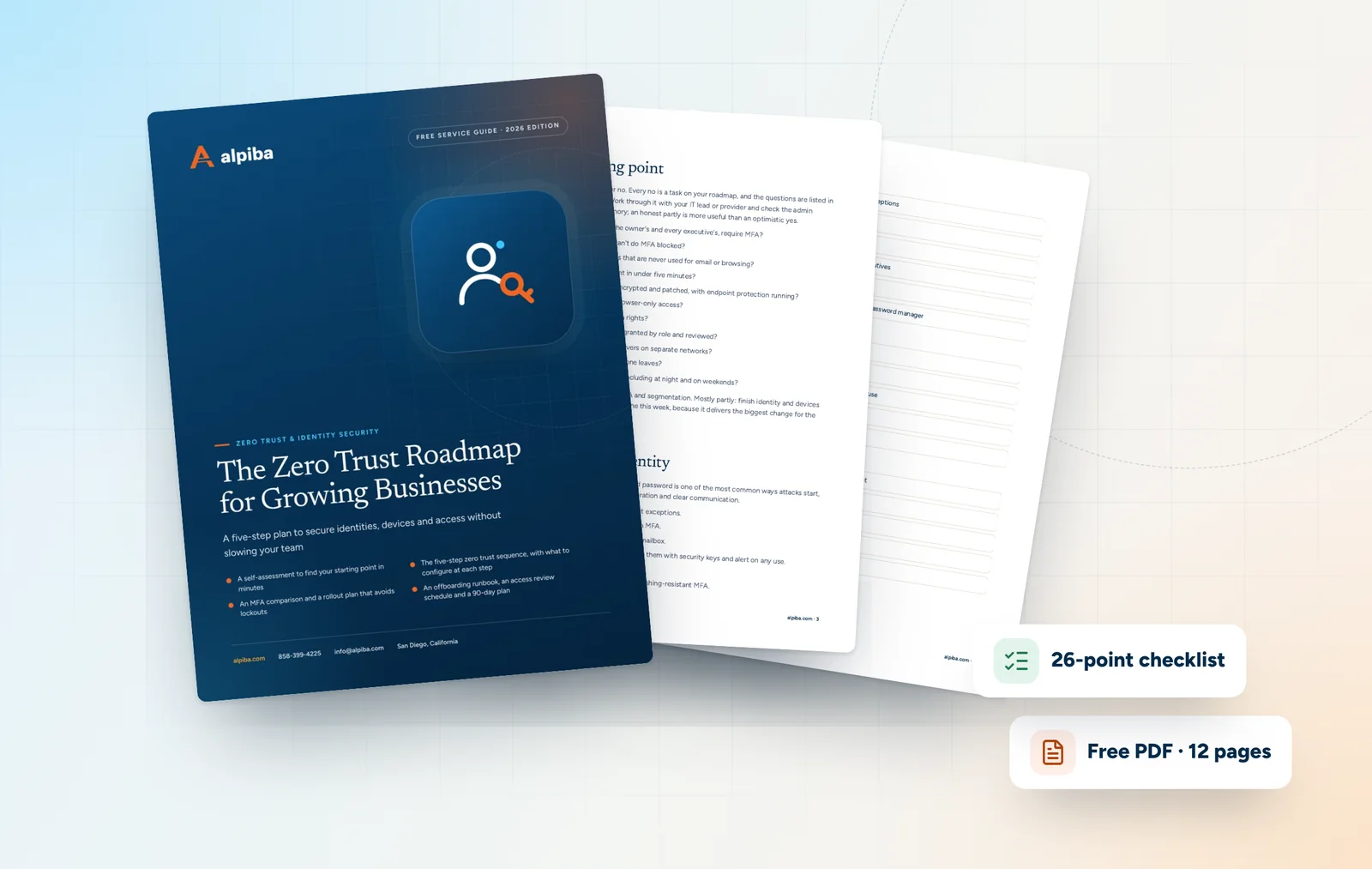
Cover and two sample pages of The Zero Trust Roadmap for Growing Businesses, a free 12-page PDF guide from Alpiba with a 26-point checklist
Inside The Zero Trust Roadmap for Growing Businesses.

Joiners, movers and leavers: where access quietly leaks

Disabling a departed employee's account is the easy part. Access also leaks through places a basic checklist misses: an MFA method registered on a personal phone, an app the person connected to their work account, a vendor portal that doesn't use company sign-in, or a shared password they still know.

  • Leavers. Sign the account out of every session, remove its MFA methods and connected apps, and check for forwarding rules before converting the mailbox. List outside portals such as banking, payroll, shipping and supplier sites, because company sign-in rarely covers them.
  • Movers. People who change roles keep collecting access unless someone removes the old permissions. Over a few years, a long-serving employee can end up able to reach far more than any one job needs.
  • Joiners. New hires get access by role from day one, not a copy of whoever had the seat before them. Copying an existing account is how excess access spreads.
  • Contractors and vendors. Give temporary access an end date when you grant it, so it expires on its own instead of waiting to be remembered.

Our managed IT onboarding and offboarding workflows handle the routine steps the same day. The identity work adds the parts that are easy to forget, and a quarterly access review catches anything that slipped through.

Hybrid work across San Diego County

Your perimeter now includes a home office in Chula Vista, a client site in Downtown San Diego, a lab bench in Sorrento Valley and a hotel lobby during a conference. Good zero trust security in San Diego checks the person and the device, not the location, and a few local situations deserve specific design choices.

  • Cross-border work. Teams that cross through Otay Mesa or San Ysidro for manufacturing, logistics or family will sign in from Mexico. A blanket block on foreign sign-ins locks them out, so use named exceptions and require a compliant device instead.
  • Personal devices. Contractors and part-time staff can work in the browser on unmanaged devices with downloads and syncing restricted, while company laptops get full access.
  • Shared workstations. Dental front desks, lab instrument PCs and warehouse terminals often share a single login. HIPAA's Security Rule requires unique user identification for systems with patient data, so individual sign-ins come first, and devices that can't support MFA get isolated on their own network.
  • Public and client networks. Attorneys at the courthouse, sales staff at a trade show and engineers at a customer site all work on networks you don't control. Access that depends on device health and MFA, rather than on being in the office, keeps that work safe.

Industry shapes the details. A dental practice needs fast sign-ins at a shared front desk, while a software company may need engineers to reach cloud consoles from anywhere. Policies should follow how each team actually works.

Illustration of the San Diego skyline at sunset, with downtown towers, the bridge across the bay, sailboats and palm trees
San Diego, where Alpiba is based.

How a zero trust rollout works, and what drives cost

Zero trust breaks things when it is switched on all at once. We roll it out the way you would change any critical system: measure first, test with a pilot group, then expand in stages.

  • Audit. MFA coverage, admin role holders, use of older sign-in methods, stale and shared accounts, device inventory and external sharing.
  • Report-only first. New access policies run in report-only mode, so we can see who would have been blocked before anyone actually is.
  • Pilot, then departments. IT and a few volunteers go first, then one team at a time, with clear notice and help on hand for MFA enrollment.
  • Ongoing. Sign-in monitoring by our SOC, regular access reviews and policy tuning, reviewed with you at each quarterly business review.

What your team will notice

If you are weighing zero trust security in San Diego, the practical question is what changes for staff day to day. Usually less than people expect:

  • A one-time MFA enrollment, with help on hand, and a new way to approve sign-ins.
  • Fewer password prompts on managed company laptops, not more.
  • Browser-only access when working from a personal device.
  • A quick request process instead of installing software themselves.

Identity-first access is part of every environment we manage and sits inside our flat, per-user monthly pricing, so headcount is the main driver. Scope also depends on your license tier, because some controls, such as conditional access in Microsoft 365 or context-aware access in Google Workspace, need specific plans. Other factors are the number of devices to enroll, whether you need security keys and how much older technology needs workarounds. Larger network changes, such as new firewalls for segmentation, are scoped as separate projects.

What not to do

  • Don't switch everything on at once. Policies that skip report-only mode and a pilot group are how an executive gets locked out on a Monday morning.
  • Don't rely on blocking countries. Attackers can route sign-ins through local infrastructure. Location is a useful signal, not a control on its own.
  • Don't exempt executives. The people who find MFA inconvenient are often the accounts attackers want most.
  • Don't leave older sign-in methods open. Some printers, scanners and business apps still use protocols that can't do MFA. Find them, replace or isolate them, then block the rest.
  • Don't stop at text-message codes. They are a starting point, not the end state for anyone with admin or payment access.
  • Don't treat it as a project with an end date. People join, move and leave every month. Access reviews and monitoring keep the model accurate.

Talk to an engineer

Free 30-minute assessment. We reply within 12–24 hours.

Fields marked * are required. By submitting, you agree that Alpiba may contact you about your request. We reply within 12–24 hours; for an active incident, call 858-399-4225.

How it works

From first call to fully protected.

  1. Discovery & Analysis

    We audit accounts, admin rights, MFA coverage and devices.

  2. Solution Design

    Access policies designed around how your team actually works.

  3. Implement

    MFA, conditional access and segmentation rolled out in stages.

  4. Protect & Optimize

    Sign-in monitoring and regular access reviews.

Signs you need it

Sound familiar?

If two or more of these ring true, a 30-minute assessment will show you where to start.

Book a free assessment
  • Some accounts still don't have MFA
  • Former employees still have access
  • Everyone is a local admin
  • Staff sign in from personal devices with no checks
  • Key systems use shared passwords

From our founder

“SMBs deserve a strategic technology partner, without enterprise complexity or cost.”

Roopa · Founder, Alpiba · former Accenture advisor

Alpiba is founder-led. Every Zero Trust & Identity engagement starts by listening to how your business runs, and senior engineers stay with you from the first call onward.

Roopa, founder of Alpiba, standing in front of evening city lights
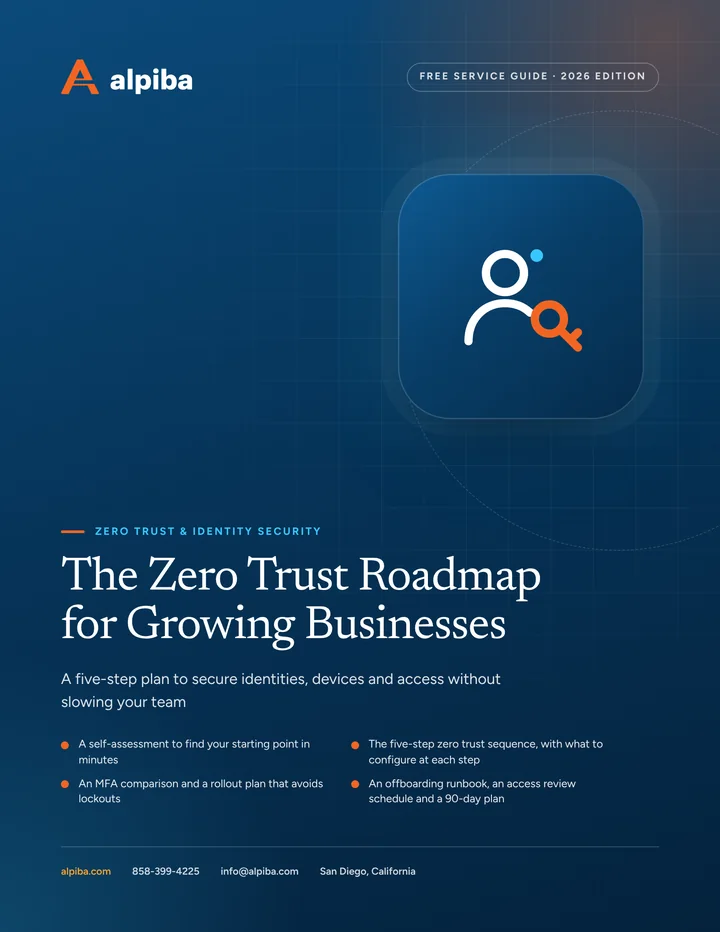
Cover of The Zero Trust Roadmap for Growing Businesses, a free PDF guide

Free guide · PDF

The Zero Trust Roadmap for Growing Businesses

A staged, practical plan for owners and IT leads: where to start, which MFA to choose, how to handle admin accounts and how to keep access clean as people come and go.

  • A self-assessment to find your starting point in minutes
  • The five-step zero trust sequence, with what to configure at each step
  • An MFA comparison and a rollout plan that avoids lockouts
  • An offboarding runbook, an access review schedule and a 90-day plan
Preview what's inside

Get the free guide

Instant download. By submitting, you agree that Alpiba may contact you about this guide; you can ask us to delete your details at any time.

FAQ

Zero Trust & Identity questions, answered.

Straight answers to the questions we hear most. Still curious? Talk to a senior engineer.

Is MFA enough on its own?

No, but it is the foundation. MFA stops most attacks that rely on a stolen password, yet text codes and simple app approvals can still be captured by convincing fake sign-in pages, and MFA does nothing about an over-permissioned account or an unmanaged laptop. Zero trust adds device checks, conditional access, least-privilege roles, segmentation and monitoring, so no single weak point opens everything.

Will zero trust slow my team down?

It shouldn't, if policies are designed around how your team works. Sign-ins from a managed, healthy laptop stay quick, and many people are prompted less often than before because the device itself helps prove who they are. Extra checks appear only when something is unusual, such as a new device, an unfamiliar location or an admin action. We test every change with a pilot group first.

What is phishing-resistant MFA?

Phishing-resistant MFA is a sign-in method that still protects you if someone enters their details on a fake login page. Passkeys, FIDO2 security keys and Windows Hello for Business qualify because the credential is tied to the real website's address, so a look-alike site can't use it. Text codes, authenticator codes and basic push approvals don't offer that protection, even though they are far better than a password alone.

Are passkeys safe for business accounts?

Yes. Passkeys are among the strongest sign-in methods available, and both Microsoft 365 and Google Workspace support them. A passkey replaces the password with a cryptographic key stored on a phone, laptop or security key, and each sign-in is confirmed with a fingerprint, face scan or PIN. The main planning work is recovery: what happens when someone loses or replaces a phone, so nobody gets locked out or tempted to bypass the process.

Is text message MFA still good enough?

Text message codes are far better than a password alone, but they are the weakest form of MFA. Codes can be stolen through SIM-swap fraud or typed into a fake sign-in page. Use them only as a temporary fallback, move most staff to an authenticator app with number matching, and give admins, finance staff and executives passkeys or security keys.

What is conditional access?

Conditional access is a set of sign-in rules that allows, limits or blocks access based on signals such as who the user is, whether their device is managed and healthy, where they are and how risky the sign-in looks. Microsoft 365 calls it conditional access, and Google Workspace offers context-aware access. We configure both and test new rules before enforcing them, so nobody is locked out by surprise.

What happens to access when an employee leaves?

It should end the same day. Our offboarding workflow disables the account, signs it out of every session, removes MFA methods and connected apps, wipes company data from mobile devices and transfers ownership of mail and files. We also work through your outside portals with you, such as banking and payroll, which company sign-in often doesn't cover, and log each step for your records.

How should a small business protect its admin accounts?

Give every administrator a separate account used only for admin work, with no mailbox and no web browsing, and protect it with phishing-resistant MFA such as a passkey or security key. Keep global admins to a small handful, use narrower roles for routine tasks, and keep two emergency access accounts that trigger an alert whenever they are used. Review the list of admins every month.

Can employees use personal phones and laptops for work?

Yes, with limits. Personal laptops can get browser-only access with downloads and syncing restricted, so company files don't end up on a device you don't manage. Personal phones can use app protection that keeps work data inside work apps and lets you remove it without touching personal photos or messages. Full access stays reserved for managed, compliant company devices.

How long does a zero trust rollout take?

It depends on your size, licensing and how much older technology is involved, so we agree a timeline after the assessment instead of quoting one up front. Identity controls come first because they reduce the most risk, followed by device health, least privilege and segmentation. Each stage is tested with a pilot group before it reaches everyone, which keeps the rollout steady rather than disruptive.

Does zero trust help with cyber insurance and compliance?

Yes. Insurers commonly ask about MFA on email, remote access and admin accounts, and frameworks such as SOC 2, HIPAA and NIST CSF all expect access to be controlled and reviewed. Zero trust produces the evidence: MFA coverage reports, access reviews and offboarding records. We help with readiness and evidence; auditors issue the reports, and insurers make their own decisions.

How much does zero trust security in San Diego cost?

For managed clients, zero trust security in San Diego is part of our flat, per-user monthly pricing, because identity-first access is built into every environment we manage. What changes the scope is your Microsoft 365 or Google Workspace license tier, the number of devices to enroll, whether you need security keys and any network work for segmentation, which is scoped separately. A free 30-minute assessment sets the plan.

Related services

Works best together.

All services
A close view of a glowing circuit board

Cybersecurity

Cybersecurity & Ransomware Defense

24/7 monitoring, threat hunting and rapid incident response that contains attacks before they impact your business.

A bright office with glass walls and meeting rooms

Cloud & Productivity

Office 365 / Microsoft 365

Certified onboarding, migration, security hardening and ongoing administration by Microsoft-certified professionals.

Built for regulated teams

Free 30-minute assessment

Ready for Zero Trust & Identity? Let's talk.

Tell us about your business and what prompted the search. A senior engineer will reply within 12–24 hours to set up your free 30-minute assessment.

  • A senior engineer, not a salesperson
  • Reply within 12–24 hours
  • Flat per-user pricing if you want our help
Roopa, founder of Alpiba

Founder-led and San Diego basedRoopa founded Alpiba to give growing businesses a real technology partner.

858-399-4225Mon–Fri, 7am–7pm PT · 24/7 for managed clients
info@alpiba.comReply within 12–24 hours

Fields marked * are required. By submitting, you agree that Alpiba may contact you about your request. We reply within 12–24 hours; for an active incident, call 858-399-4225.

Call Free assessment